Export and Import of Components/Workflows
Components and workflows can be exported and imported flexibly and with a fine granularity via the backend API /api/transformations GET and PUT endpoints. To make that easier, scripts are available that can be run from any Bash environment or from the runtime Docker image.
Use Case examples:
- Backup only certain collection of workflows / components (e.g. certain categories) and their dependencies
- Keep a selection versioned in a git repository
-
Syncing and hybrid working; I.e. export some trafos => work on them locally => import them, overwriting the existing trafos
Warning
This has some pitfalls concerning reproducibility and deserializability
-
transfer a subset of components/workflows from one hetida designer instance to another, e.g. from a test environment to a production environment.
This guide assumes the default docker compose setup described in the project README.
Import via user interface
On the home tab in the bottom left the user interface provides a import trafos button

This button opens a dialog where workflow or component json (or component code) can be pasted into a text input and imported:
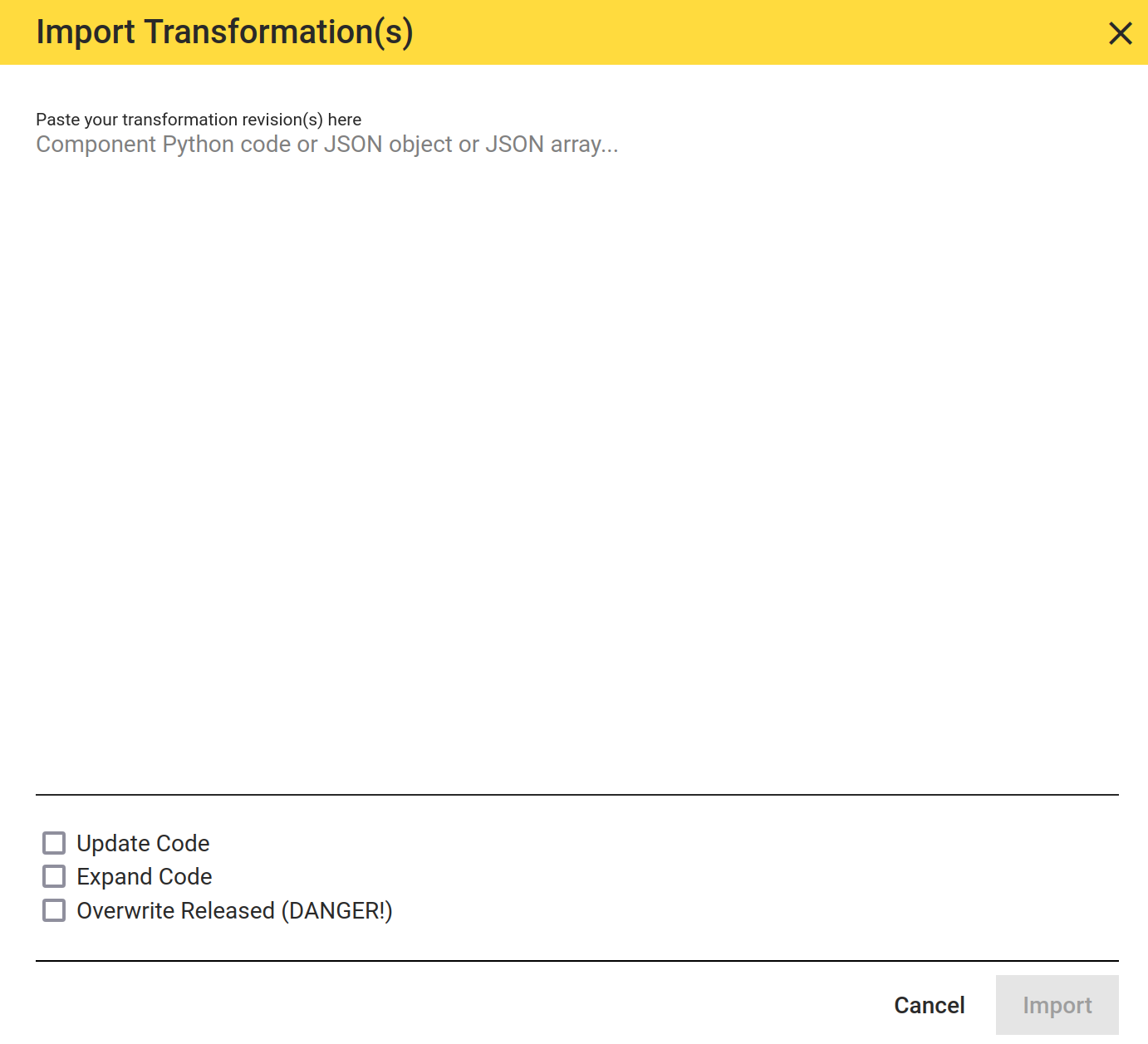
You can enter a single transformation's json or a single component's code. E.g. component code can be simply copy-pasted from the component editor, e.g. from antoher installation, and pasted here.
It is also possible to enter a json array containing transformation jsons or json-serialized component code strings (i.e. a string containing the json escaped component code.)
Export / Import via hetida designer backend API
The hetida designer backend API exposes a GET and a PUT endpoint for transformations. This endpoints provide fine-granular filter functionality and hence can be used for exporting / importing.
Note that the hdctl cli tool and the docker based export / import how-to below basically access these endpoints / the same functions exposed by these endpoints.
Export / Import via hdctl bash tool
The hdctl Bash tool provides a comfortable sync subcommand, that can be used for many purposes and should be your preferred option for fine-granular export / import.
The underlying hdctl Bash tool's fetch and push subcommands can be used directly for this purpose.
Using hdctl has the advantage that it does not require docker. See the hdctl script file for installation instructions and run ./hdctl usage for usage details and examples.
hdctl supports the same parameters as the Pythons script variant discussed below.
Export / Import via Python script (in runtime container environment)
Exporting all components and workflows
Go to a directory where you want to store the exported components and workflows. Now run
docker run --rm \
  -e "HETIDA_DESIGNER_BACKEND_API_URL=http://hetida-designer-backend:8090/api/" \
  --name htdruntime_export \
  --mount type=bind,source="$(pwd)",target=/mnt/obj_repo \
  --network hetida-designer-network \
  --entrypoint python \
  hetida/designer-runtime -c 'from hetdesrun.exportimport.export import export_transformations; export_transformations("/mnt/obj_repo/exported_data/");'
The command will create a subdirectory exported_data in your current directory with subfolders components and workflows each of which contains subfolders corresponding to the categories in which the components and workflows are stored in individual json files.
Exporting selected components and workflows
To export only selected components and workflows instead of all, the export_transformations accepts several optional input parameters to filter for the desired components and workflows.
type: must be either "COMPONENT" or "WORKFLOW" (if specified)state: must be either "DRAFT", "RELEASED" or "DISABLED" (if specified)categories: a list of categories, only components/workflows whose catgeories are included in this list will be exported- category_prefix: the first part of category string, only components/workflows whose categories start with this string will be exported
ids: a list of ids, only components/workflows whose ids are included in this list will be exportednames: a list of names, only components/workflows whose names are included in this list will be exportedinclude_deprecated: if set to false, deprecated components/workflows will not be exported (default: true)components_as_code: if set to true, components will be exported as.pyfiles (default: false)expand_component_code: if set to true, documentation as module docstring and test wiring as dict will be added to the component code (default: false)update_component_code: if set to true this recreates the main function definition inclusing the COMPONENT_INFO dictionary in component source code. Use this for example to ensure that exported components have code that is importable from the code only.
If more than one of these parameters is specified, only the components/workflows that pass all filters will be exported, which corresponds to a logical "and" connection of the filter criteria.
The exported JSON / .py files are automatically saved in subfolders corresponding to the categories of the exported components and workflows within subfolders corresponding to their type ("components" or "workflows").
Note
Storing a workflow in the database that contains components or other workflows that are not yet stored in the database will result in an error.
Therefore, the export function also automatically exports all dependent transformation revisions, regardless of whether they match the filters.
For example, the shell command to export the components that return the mathematical constants e and π is
docker run --rm \
  -e "HETIDA_DESIGNER_BACKEND_API_URL=http://hetida-designer-backend:8090/api/" \
  --name htdruntime_export \
  --mount type=bind,source="$(pwd)",target=/mnt/obj_repo \
  --network hetida-designer-network \
  --entrypoint python \
  hetida/designer-runtime -c 'from hetdesrun.exportimport.export import export_transformations; export_transformations("/mnt/obj_repo/exported_data/", type="COMPONENT", category="Arithmetic", names=["E", "Pi"]);'
Importing all components and workflows
IMPORTANT
If you have existing workflows/components in your installation you should do a complete database backup as is described in backup, just in case something bad happens! Note that importing overwrites possibly existing revisions with the same id.
To disable overwriting existing base components and example workflows with status RELEASED or DISABLED you can set the input parameter allow_overwrite_released to False. Components and workflows with status DRAFT will be overwritten in any case.
Simply run the following command to import the exported components and workflows from the same directory:
docker run --rm \
  -e "HETIDA_DESIGNER_BACKEND_API_URL=http://hetida-designer-backend:8090/api/" \
  --name htdruntime_import \
  --mount type=bind,source="$(pwd)",target=/mnt/obj_repo \
  --network hetida-designer-network \
  --entrypoint python \
  hetida/designer-runtime -c 'from hetdesrun.exportimport.importing import import_transformation_from_dir; import_transformation_from_dir("/mnt/obj_repo/exported_data/", allow_overwrite_released=False, update_component_code=False);'
The input parameter update_component_code of the import_transformation_from_dir function is optional and set to True by default. When set to True, the code is updated even of components in the "RELEASED" state – based on the current implementation of the update_code function – before they are stored in the database.
This has the advantage that the automatically generated part of the code corresponds to the latest schema and contains all relevant information about the component.
Setting the parameter to False ensures that the code is not changed, but remains exactly as it has been exported.
Importing directly into the database
If you run the command in the same environment as your instance is running, you can bypass the REST API and more directly access the database by setting the optional input paramter directly_into_db to true, which is most likely faster:
docker run --rm \
  --name htdruntime_import \
  --entrypoint python \
  hetida/designer-runtime -c 'from hetdesrun.exportimport.importing import import_transformation_from_dir; import_transformation_from_dir("/mnt/obj_repo/exported_data/"", directly_into_db=True);'
Importing components from python files
Components can be imported not only from .json files, but also from .py files. Such Python files should contain the code itself defining a main function as well as a dictionary called COMPONENT_INFO containing the attributes of the corresponding component, just like the components created in the web application.
Attributes that are not provided will be set to the following default values:
* id: <randomly generated UUID>
* revision_group_id: <randomly generated UUID>
* name: "Unnamed Component"
* version_tag: "1.0.0"
* description: "No description provided"
* category: "Other"
* state: "RELEASED"
* released_timestamp: <time of import>
* inputs: {}
* outputs: {}
Documentation
If present, the module docstring (starting from its third line) is used as documentation.
Test wiring
For the import from a .py file, the initial test wiring can be provided as part of the Python code.
Note
This only applies to the import from .py files and no other type of import!
Futhermore, this initial test wiring in the component code will not be updated if the actual test wiring is changed.
For this purpose, add another dictionary named TEST_WIRING_FROM_PY_FILE_IMPORT.
Defining this dictionary below the main function is recommended, but the position does not influence the import.
The same rules apply for the initial test wiring as for the wiring of the JSON payload for an execution request via REST API. A valid initial test wiring dictionary is for example
TEST_WIRING_FROM_PY_FILE_IMPORT = {
    "input_wirings": [
        {
            "workflow_input_name": "scores",
            "adapter_id": "direct_provisioning",
            "use_default_value": False,
            "filters": {
                "value": (
                    "{\n"
                    '    "2020-01-01T01:15:27.000Z": 42.2,\n'
                    '    "2020-01-03T08:20:03.000Z": 18.7,\n'
                    '    "2020-01-03T08:20:04.000Z": 25.9\n'
                    "}"
                )
            },
        },
        {
            "workflow_input_name": "threshold",
            "adapter_id": "direct_provisioning",
            "use_default_value": False,
            "filters": {"value": "30"},
        },
    ],
}
Remove test wirings when importing
You may want to ignore the test wirings stored in the component/workflow files during import. One reason may be that the target backend validates incoming test wirings of the imported workflows and components: Adapters present in a test wiring must be registered under the same adapter key in the target backend.
To ignore test wirings when importing, simply add a keyword parameter strip_wirings=True to the call of the import_transformation_from_dir function in the commands documented above.
More fine-granular wiring stripping
The api endpoints which hdctl uses (/api/transformations GET and PUT) support more fine-granular control over wiring stripping behaviour. These options are not present in the import_transformation_from_dir functions. The addiitional url query parameters are:
strip_wirings_with_adapter_id: strip all input wirings and output wirings with that adapter id. Can be provided multiple timeskeep_only_wirings_with_adapter_id: Keep only input wirings and output wirings with that adapter id. Can be specified multiple times and then keeps only wirings having one of the specified adapter ids.
Note that for the GET endpoint, if components_as_code is set to true, you have to also activate expand_component_code in order to allow changing the test wiring stored in the component code that is returned.
Typical use cases are:
- Transfering trafos between hetida designer instance, where an adapter is present on the source instance but not on the target instance.
- Backup without including test wirings that may not work when restoring dure to changed environment (adapters not present anymore)
Deprecate older revisions when importing new ones
To ensure that only the latest revision of a revision group can be used, you can deprecate all other revisions of the same revision group during import by setting the parameter deprecate_older_revisions=True in the import_transformation_from_dir function call.
If the latest revision of a revision group is stored in the database, all imported transformation revisions of this group will be deprecated.
Generate file with paths to json files in import order
When importing transformation revisions, the order is important to avoid problems caused by nested revisions that have not yet been imported.
The import_transformation function takes care of this problem, but there may be reasons why you cannot use it.
There is a service function that creates a file containing line by line the paths to all exported .json files in the order in which they should be imported.
To create such a file, simply run the following command with the path to the directory where the .json files were exported, e.g. exported_data", and the path where this file should be written, e.g. json_import_order.txt".
docker run --rm \
  --name htdruntime_import \
  --entrypoint python \
  hetida/designer-runtime -c 'from hetdesrun.exportimport.importing import generate_import_order_file; generate_import_order_file("exported_data", "json_import_order.txt");'
In case this directory contains also component code as .py files that you want to import as .json files, set the option transform_py_to_json to True and the corresponding .json files will be generated and added to the list of paths in the generated newly file.
Import new components and workflows added to the git repository
If you (re-)start the backend container, you can use the base trafo autodeployment feature.
For a running backend container you can use the function import_transformation_from_dir.
The base components and example workflows provided with hetida designer are contained in the transformations/ directory within the docker container.
Note
The version of the components and workflows imported depends on the version of the image you use when running this command instead of the version of the hetida designer instance to which they are imported.
You can simply run the following command to import all components and workflows from there:
docker run --rm \
  -e "HETIDA_DESIGNER_BACKEND_API_URL=http://hetida-designer-backend:8090/api/" \
  --name htdruntime_import \
  --network hetida-designer-network \
  --entrypoint python \
  hetida/designer-runtime -c 'from hetdesrun.exportimport.importing import import_transformation_from_dir; import_transformation_from_dir("transformations/");'